Bookmarks are a small piece of session state with an outsized operational cost. Kept separate per account, they remove a whole class of wrong-dashboard mistakes and make handovers much easier to explain.
Why per-account bookmark management matters for multi-account teams
Bookmarks are usually the last thing a team thinks to standardise, and often the first thing that causes a visible mistake. A shared bookmark bar accumulates dashboards, help centres, reporting links and internal tools from every client. An operator in a hurry clicks the first plausible shortcut and lands in the wrong account's context. Nothing is broken technically, but the next five minutes are spent working out what happened.
Most agency operators do not set out to solve per-account bookmark management as a standalone project. It appears as a side effect of growth: another storefront, another client workspace, another campaign login. Once several people touch the same set of accounts, the small habits that worked for a handful of profiles stop being reliable, and keeping separate bookmarks per account becomes part of the operating routine rather than an occasional task.
The underlying issue is state. Cookies, cached assets, local storage, saved bookmarks and extension data all persist between visits, and a conventional browser assumes that persistence is helpful. For a team running many accounts in parallel, the same persistence creates ambiguity about which context is active. Treating per-account bookmark management as a documented workflow removes that ambiguity before it turns into rework.
- One isolated profile per account, with separate cookies, cache, local storage and bookmarks.
- One recorded proxy route per profile, reviewed whenever the account's region changes.
- Role-based permissions that match what each teammate actually does.
- Cloud sync so the workspace does not depend on a single laptop.
- Batch launch to remove repetitive opening and closing of profiles.
- A written owner for every account and a short handover note.
A short definition
For this guide, per-account bookmark management means the documented set of conventions that keep browsing state, network routes and human permissions attached to the right account. It is a process, not a single setting.
Defining it this way makes the rest of the article testable: each section below describes something you can check in a workspace rather than a claim you have to take on trust.
- One isolated profile per account, with separate cookies, cache, local storage and bookmarks.
- One recorded proxy route per profile, reviewed whenever the account's region changes.
- Role-based permissions that match what each teammate actually does.
How keeping separate bookmarks per account works in a Chromium-based workspace
Attaching a bookmark set to each isolated profile removes that ambiguity. In MetaDesk, bookmarks are stored per profile alongside separate cookies, cache and local storage, so the shortcuts that appear when a profile launches belong to that account alone. Combined with a naming convention and batch management, the result is a workspace where a new teammate can find the right dashboard without asking in a chat channel.
In practice, keeping separate bookmarks per account starts with one profile per account and a naming convention the whole team can read. The profile is the unit that holds the session, the bookmarks and the proxy route. Once that unit is defined, batch launch and management can act on dozens of profiles at once without collapsing their boundaries.
Cloud sync then makes the workspace portable: profiles and their settings follow the account rather than a single machine. Role-based permissions decide who may open, edit or launch each profile, and activity can be reviewed when ownership changes. Together these pieces make per-account bookmark management auditable, which is the difference between a habit and a process.
- Chromium rendering keeps pages familiar for new teammates.
- Isolation covers persistent state, not just separate windows or tabs.
- Bookmark management keeps each account's shortcuts in the right profile.
- Ad campaign grouping organises logins by client or brand.
- Windows and macOS clients share the same workspace model.
Why the profile is the right unit
Profiles are the smallest thing that can hold session state, a bookmark set, a proxy route and a permission at the same time. Making them the unit of configuration keeps per-account bookmark management understandable for a new teammate.
Group profiles by client or brand for batch work, but keep the individual profile as the place where settings live. Grouping is for convenience; isolation is per profile.
- Chromium rendering keeps pages familiar for new teammates.
- Isolation covers persistent state, not just separate windows or tabs.
- Bookmark management keeps each account's shortcuts in the right profile.
Step-by-step: keeping separate bookmarks per account
Before touching settings, decide what 'done' means for a profile in your team. A workable definition is: named, owned, routed, permissioned, synced and verified. Anything missing from that list is a follow-up task, not a cosmetic detail.
The sequence below follows that definition. It is deliberately short and deliberately boring, because per-account bookmark management should be a repeatable procedure rather than a one-off project with a heroic owner.
- Keep the step order fixed so every operator produces the same result.
- Write decisions into the access policy as you make them.
- Pilot with ten accounts before scaling to the full set.
- Define what a finished profile looks like before you start.
- Define the naming conventionWrite a pattern such as client-brand-platform-role and apply it to every profile. A readable name is what makes a large workspace navigable.
- Create one profile per accountAdd each account as its own isolated session so cookies, cache, local storage and bookmarks stay separate from day one.
- Attach a proxy route to each profileAssign the network route that matches the account's region and record the mapping in your access policy rather than in memory.
- Record ownership and permissionsName the account owner and the second-factor holder in your own policy, then invite teammates with the minimum role they need.
- Enable sync and schedule an exportTurn on cloud account sync for portability and set a recurring profile export for recovery. Test a restore at least once.
- Batch launch and verify isolationLaunch a small group together, confirm that saved state does not cross over, and only then add the remaining accounts.
After the pilot
Once ten profiles pass the verification step, clone the conventions rather than the profiles. Each new account still gets its own session, route and owner; only the pattern is copied.
Re-run the isolation check after any client update or device change. It takes two minutes and catches the configuration drift that otherwise surfaces during a busy working session.
- Keep the step order fixed so every operator produces the same result.
- Write decisions into the access policy as you make them.
- Pilot with ten accounts before scaling to the full set.
Pre-scale checklist for per-account bookmark management
A checklist earns its place only if someone can finish it. This one is designed for a ten-minute pass before you move from a pilot group to a full team. Anything that cannot be answered from the workspace or your access policy should be treated as an open item, not assumed.
Record the date and the reviewer next to the result. Six months later, that small habit is what lets you explain why a decision was made, which is far more useful than a perfect spreadsheet nobody updated.
- Every profile has a name following the documented convention.
- Every profile has a recorded owner and second-factor holder in your policy.
- Every profile has one proxy route, and the mapping has been reviewed this month.
- Roles follow least privilege, with exceptions recorded and dated.
- Cloud sync is enabled and a scheduled export has been restored once.
- Isolation was verified with two profiles launched together.
- A joiner and leaver checklist exists and has been used at least once.
| Check | What good looks like | Owner |
|---|---|---|
| Naming convention | Every profile follows client-brand-platform-role | Workspace admin |
| Proxy mapping | One route per profile, reviewed this month | Account owner |
| Permissions | Least privilege, exceptions dated and owned | Team lead |
| Sync and export | Sync on, export scheduled, restore tested | Workspace admin |
| Isolation | Two-profile launch shows no shared state | Operator |
Making the review stick
Put the checklist in the same place as the access policy and give it a recurring owner. A checklist that depends on someone remembering to open it will be opened twice.
Keep failed rows visible until they are fixed. Hiding them makes the review feel complete while the underlying per-account bookmark management problem remains.
- Every profile has a name following the documented convention.
- Every profile has a recorded owner and second-factor holder in your policy.
- Every profile has one proxy route, and the mapping has been reviewed this month.
Common mistakes with keeping separate bookmarks per account and how to fix them
A useful way to audit an existing workspace is to look for decisions that live only in somebody's head. If the reason a profile is named a certain way, or why a route was chosen, cannot be recovered from a document, that decision is a liability.
Work through the table and mark each row as done, open or not applicable. Two open rows are normal during a first review; two open rows six months later are a process problem, and per-account bookmark management will not improve until they are closed.
- Fix the template, not just the single profile that failed.
- Record why an exception exists and when it should be reviewed.
- Re-test isolation after any client update or device change.
- Keep the review short enough that it actually happens weekly.
| Mistake | Why it hurts | Fix |
|---|---|---|
| Reusing one profile for several accounts | Shared cookies and local storage make sessions ambiguous | One isolated profile per account |
| Choosing proxy routes from memory | Two operators pick different routes for the same account | Record the mapping in the access policy |
| Leaving permissions wide open | Access survives role changes and offboarding | Least privilege plus a monthly review |
| Naming profiles after people | Names stop making sense after a reorg | Name after client, brand, platform and role |
| Treating sync as a backup | A sync error has no point-in-time recovery | Schedule exports and test a restore |
Turning fixes into defaults
Whenever you correct a profile, ask what would have prevented the mistake. Usually the answer is a template, a required field in the naming convention or a step in the handover checklist.
Update the default and note the change in the access policy. That is how a one-off cleanup becomes a lasting improvement to keeping separate bookmarks per account.
- Fix the template, not just the single profile that failed.
- Record why an exception exists and when it should be reviewed.
- Re-test isolation after any client update or device change.
Metrics that show whether per-account bookmark management is working
Avoid vanity measures such as the total number of profiles created. Volume grows naturally with the business and says nothing about quality. Prefer rates: how many profiles have a recorded owner, how many mappings were reviewed this month, how many handovers needed help.
Review the results with the people doing the work. If a metric looks good but operators still keep a private spreadsheet of workarounds, the spreadsheet is the more accurate signal about keeping separate bookmarks per account.
- Measure a baseline before changing anything.
- Prefer rates and times over raw counts.
- Ask operators what still feels confusing each week.
- Repeat the same measurement two weeks after rollout.
| Metric | What to compare | How to collect |
|---|---|---|
| Time to first correct launch | New teammate before vs after rollout | Stopwatch during onboarding |
| Profiles with a recorded owner | Percentage of total profiles | Monthly workspace review |
| Mapping reviews completed | Percentage of routes reviewed this month | Mapping table with dates |
| Handovers needing help | Count per week | Short weekly team note |
| Recovery time | Minutes to restore a profile from export | Scheduled restore test |
What a good baseline looks like
A baseline does not need to be precise. Time one onboarding session, count how many profiles have a recorded owner, and note how many handovers needed help last week. Three rough numbers are enough to show whether the change helped.
Keep the same definitions at the follow-up. If you change what counts as a handover between measurements, the comparison tells you nothing about per-account bookmark management.
- Measure a baseline before changing anything.
- Prefer rates and times over raw counts.
- Ask operators what still feels confusing each week.
When to change the process
If two weeks of measurement show no improvement, look at the step people skip rather than the tool. In most teams that is the ownership record or the proxy mapping, and both are documentation problems with documentation fixes.
Change one thing at a time and measure again. Stacking several process changes at once makes the next result impossible to interpret.
- Measure a baseline before changing anything.
- Prefer rates and times over raw counts.
- Ask operators what still feels confusing each week.
Windows and macOS: deployment notes
Mixed Windows and macOS teams do not need different policies; they need the same policy applied twice. Keep the naming convention, proxy mapping and role definitions identical across platforms, and verify them once on each client after installation.
Use the official installer for each operating system and keep clients updated together. A version mismatch is a surprisingly common explanation for a setting that appears in one place but not another, and it is easy to rule out early.
- Use the official installer for each operating system.
- Keep Windows and macOS clients updated together.
- Apply one written policy on both platforms.
- Verify isolation and sync once on each client after installation.
- Install from the official sourceUse the official Windows or macOS installer and record the version you deployed on each machine.
- Re-create the pilot profilesSet up two profiles with distinct bookmark sets and proxy routes, mirroring the conventions used on the other platform.
- Run the isolation checkLaunch both profiles together and confirm neither sees the other's saved state after a restart.
- Confirm sync across devicesOpen the workspace from the other platform and verify profiles, routes and permissions appear unchanged.
One policy, two clients
Differences between platforms should be limited to installation and version notes. Conventions, ownership records and role definitions belong in a single document that both Windows and macOS users follow.
If a setting appears on one client but not the other, check versions first. Most apparent cross-platform differences are update gaps rather than product limitations.
- Use the official installer for each operating system.
- Keep Windows and macOS clients updated together.
- Apply one written policy on both platforms.
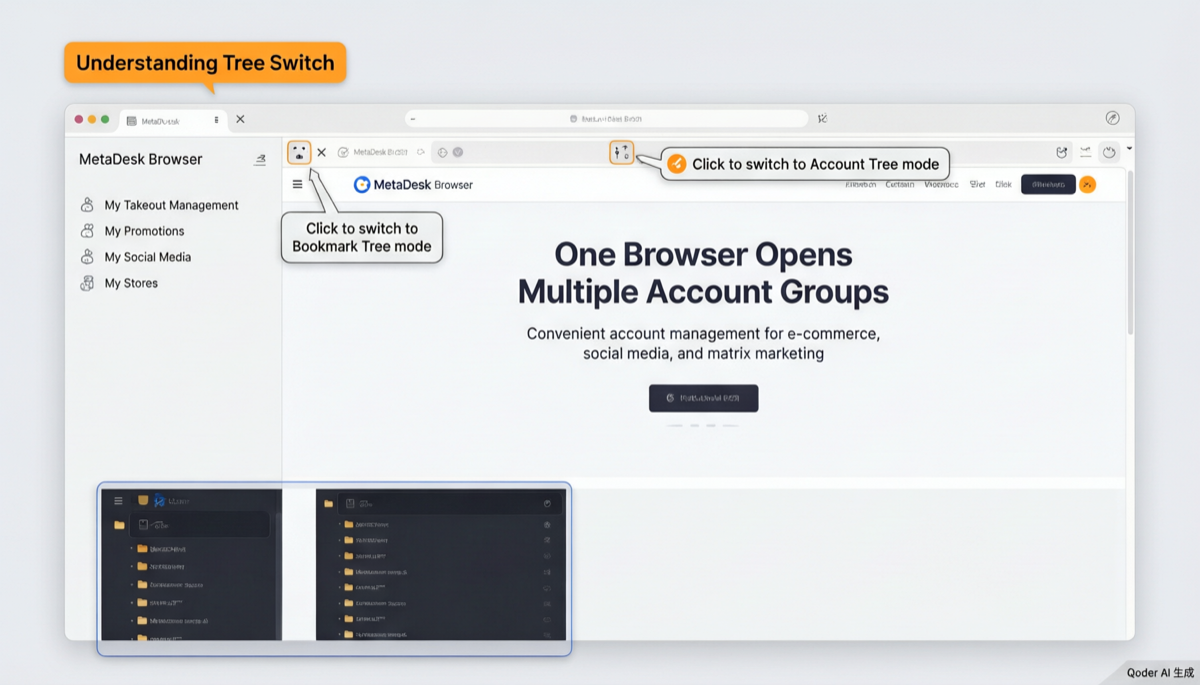
See it in action

Frequently asked questions
Can teammates share a workspace without mixing account state?
Yes. Every account runs in an isolated session with separate cookies, cache, local storage and bookmarks. Team collaboration adds roles on top of that isolation, so a colleague can launch a profile without inheriting another account's saved state.
What should be written down before a rollout?
At minimum: the profile naming convention, one proxy route per profile, the owner and second-factor holder for each account, the role definitions, and the joiner and leaver steps. Six lines of documentation prevent most of the rework described in this guide.
Is there a free way to try per-account bookmark management?
Yes. MetaDesk offers free registration, so you can build a small workspace with a couple of real accounts and test isolation, cloud sync, batch launch and permissions before making any commitment. Confirm current plan details on the official pricing page.
How often should the workspace be reviewed?
A ten-minute monthly review of permissions, proxy mappings and stale accounts covers most teams, alongside a weekly check that isolation still holds after updates. Add a scheduled profile export and test a restore at least once so recovery is proven.
Does cloud sync replace a profile export?
No. Sync keeps configuration portable across devices, while an export gives you a point-in-time copy you can restore. Use both: sync for continuity, exports for recovery, and a tested restore so the process is verified rather than assumed.
Is a separate bookmark set really necessary for small teams?
It becomes valuable as soon as more than one person launches the same account. Even with five profiles, a per-account set prevents the slow accumulation of links that eventually make a shared bar unreadable.
How often should bookmark sets be cleaned up?
Fold a bookmark review into the weekly account review: remove retired dashboards, add new reporting links, and confirm each profile still carries only the shortcuts relevant to its account.
Put this workflow into practice
One Chromium workspace, isolated profiles for every account, and a team that can actually share them.