Most teams do not plan to run dozens of accounts. It happens gradually: one more storefront, one more client, one more ad account, until the browser tab bar becomes the busiest part of the workflow. That is usually the moment how to set up isolated browser profiles step by step stops being a convenience and starts being infrastructure.
Key takeaways
- Account isolation is about state - cookies, cache, local storage and bookmarks - not just separate windows.
- A repeatable profile naming and proxy convention removes most day-to-day multi-account friction.
- Cloud sync plus a restorable export is what turns a single laptop setup into a team workflow.
What how to set up isolated browser profiles step by step really involves
The underlying problem is state. Cookies, cached data, local storage, saved passwords and extensions all persist, and ordinary browsers assume that persistence is a feature. For multi-account work, that persistence becomes a liability.
MetaDesk is a Chromium-based multi-session browser built for exactly this situation. Instead of juggling windows or maintaining a shelf of virtual machines, you create a profile for each account and keep the whole set inside one workspace that a team can share, sync and audit.
If you are evaluating how to set up isolated browser profiles step by step, start by counting how many accounts you run today and how many people touch them. Those two numbers determine which features you actually need.
Where ordinary browsers break down
The failure mode is almost always the same: the browser quietly reuses state, and the team only notices when a login challenge appears or a client sees the wrong workspace.
- Session crossover: cookies and local storage from one account leak into another and trigger unexpected verification.
- Manual repetition: opening, tagging and closing accounts one at a time burns hours every week.
- Unclear ownership: when only one laptop holds the profiles, nobody else can step in when that person is away.
- Inconsistent network settings: a mismatched route is one of the fastest ways to lose a working session.
- Onboarding drag: new teammates need a repeatable setup, not a list of passwords in a chat message.
- No audit trail: without a workspace it is hard to answer who accessed which account and when.
The hidden cost of context switching
Switching between accounts sounds trivial until you multiply it by the number of people and the number of times a day each person does it. At fifty accounts and five teammates, the repetition becomes a measurable share of the working week - and every manual switch is an opportunity to open the wrong context.
Why isolation is a team problem, not an individual one
One careful operator can keep a personal system tidy. A team cannot rely on individual carefulness, because conventions drift the moment someone is on leave. Isolation has to be enforced by the workspace rather than remembered by each person.
How MetaDesk handles it
MetaDesk separates each account into its own persistent browser context, then adds the collaboration layer that a plain browser profile manager does not provide. Here is the feature map most teams care about:
| Capability | What it actually does | Best for |
|---|---|---|
| Isolated multi-storage profiles | Every account runs in its own session with separate cookies, cache, local storage and bookmarks, so data never bleeds between profiles. | Agencies, multi-store sellers |
| Cloud account sync | Profiles and their settings follow the workspace across devices instead of being trapped on one laptop. | Remote and hybrid teams |
| Team collaboration | Invite teammates into a shared workspace and decide exactly who may open, edit or launch each profile. | Growing agencies |
| Batch management | Launch, tag, export and update dozens of profiles in a single pass instead of repeating the same clicks account by account. | Operators with 50+ accounts |
| Per-profile proxy settings | Give each profile its own network route so access stays consistent with the region the account belongs to. | Cross-border ecommerce |
| Ad campaign management | Group campaign logins, pixels and reporting by client or brand without mixing contexts. | Media buyers |
| Bookmark management | Maintain a separate bookmark set for each profile, so shortcuts and saved logins stay in the right place. | Every multi-account user |
| Windows and macOS builds | The same workspace model on both desktop platforms keeps mixed-device teams in sync. | Mixed-device teams |
See it in action
The screenshots and clips below come from the shared resource library. Each caption is taken directly from the asset filename, so the visual reference stays consistent with the documentation your team already uses.
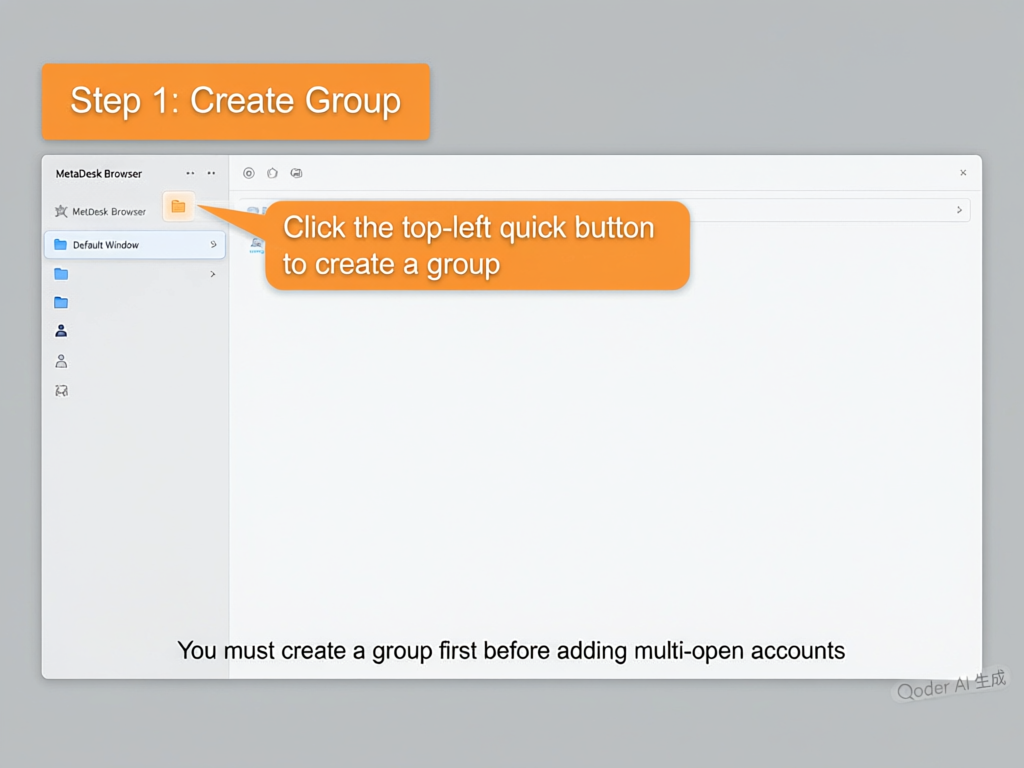

A practical step-by-step setup
The rollout below works for a small agency as well as a team that has already outgrown a spreadsheet of logins. Run it once with a handful of profiles before moving the whole roster.
- Create the workspaceStart in MetaDesk and choose Personal for solo work or Team when more than one person needs access. The workspace becomes the container for every profile, permission and shared setting.
- Add one profile per accountGive each account its own profile and name it with a convention your team can read at a glance, such as client-brand-platform-role. A consistent naming scheme is what makes 200 profiles manageable.
- Attach a proxy to each profileOpen the profile settings and assign the network route that matches the account's region. Keep one route per profile; sharing a route across unrelated accounts is a common cause of avoidable verification prompts.
- Record ownership and 2FA responsibilityStore who owns the account and who holds the second factor inside your own access policy. MetaDesk keeps the browsing context isolated; your policy keeps the people side accountable.
- Set role-based permissionsInvite teammates into the workspace and grant the minimum access they need. Operators usually need launch rights, while account owners need edit and export rights.
- Batch launch and verify isolationSelect a group of profiles, launch them together, then confirm that cookies and saved logins do not cross over. This quick check catches configuration mistakes before a working session starts.
- Turn on cloud sync and backupsEnable sync so profiles survive a hardware change, and export copies on a schedule for recovery. A backup you have never restored is only a hypothesis.
- Review activity weeklyOnce a week, check profile health, remove stale accounts, and confirm permissions still match the current team. Ten minutes here prevents most access incidents.
Make the convention stick
Write the naming rule, proxy mapping and permission matrix into a single short document. When everyone follows the same three rules, profile growth stops creating confusion.
Best-practice checklist
- One isolated profile per account, with a naming convention documented in your access policy.
- A single, recorded network route per profile that matches the account's region.
- Role-based permissions reviewed at least once a month.
- Cloud sync enabled plus a scheduled profile export you have actually restored once.
- A weekly review of sticky sessions, stale accounts and bookmark sets.
- A short handover checklist for anyone joining or leaving the team.
A weekly operating rhythm
Spend ten minutes every Monday on profile health, permission review and one restored backup. That small habit is more effective than any annual security overhaul, and it keeps the workspace trustworthy as the account count grows.
Common mistakes to avoid
Reusing one browser profile for several accounts
Shared cookies and local storage are exactly what makes accounts look connected. Give every account a dedicated profile from day one, even when the accounts belong to the same client.
Skipping the proxy mapping
A profile is only as consistent as the network route behind it. Document the route per profile and review the mapping whenever a teammate changes region or provider.
Leaving permissions wide open
All-access workspaces are convenient until someone leaves the team. Use roles, remove dormant accounts promptly, and keep an audit trail of who launched what.
Frequently asked questions
How long does a clean setup usually take?
A small workspace with five profiles, proxy assignments and two teammates can usually be set up in a single sitting. Most of the time goes into agreeing the naming convention and access policy, not the software.
Is MetaDesk free to try?
Yes. You can create a free account, build a small workspace and test the full multi-session workflow before committing to a paid plan. Start with three to five profiles to validate the setup with real accounts.
Does each profile keep its own cookies and local storage?
Yes. Profile isolation in MetaDesk uses separate multi-storage contexts, so cookies, cache, local storage and bookmarks from one account do not carry over into another.
Can several teammates use the same workspace?
Yes. Team workspaces support invitations and role-based permissions, so you can decide who may view, edit or launch each profile and revoke access when someone changes roles.
Next steps
Pick three accounts, build three isolated profiles, and invite one teammate into the workspace. If the setup takes less time than your current routine, expand from there. MetaDesk is free to start, and the same workspace scales from a handful of profiles to hundreds without changing the way your team works.
Put this workflow into practice
One Chromium workspace, isolated profiles for every account, and a team that can actually share them.